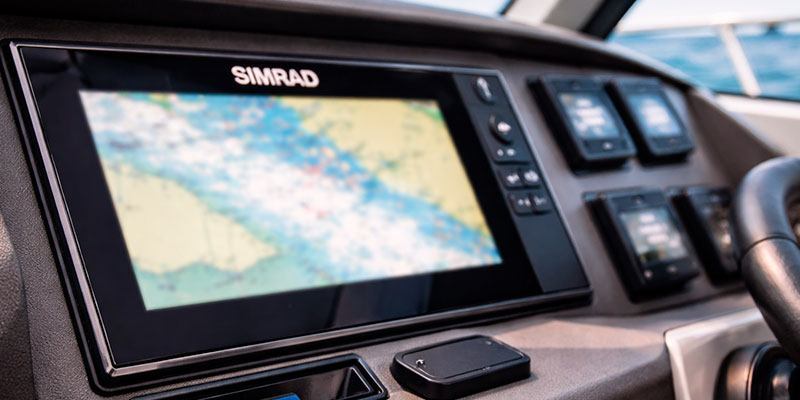
Modern marine navigation systems rely on accurate digital charts, and one of the most common questions among boat owners is how to install Navionics on Simrad devices correctly. Whether you are upgrading your yacht chartplotter, replacing boat electronics, or preparing for a new sailing season, installing Navionics charts on Simrad multifunction displays is a straightforward process when done properly.
Simrad chartplotters are widely used in yachts, fishing boats, sailboats, and commercial vessels because of their reliability, compatibility, and advanced marine GPS navigation features. Combined with Navionics marine charts, they provide precise mapping, sonar integration, route planning, and real-time navigation support.
What You Need Before Installing Navionics on Simrad
Before starting the installation, prepare the following yacht equipment and boat spare parts related items:
- Simrad chartplotter or multifunction display
- Compatible Navionics chart card, usually microSD with SD adapter
- Updated Simrad software version
- Stable onboard power supply
- Empty backup SD card for data storage if needed
Always verify that your Simrad device supports Navionics cartography. Most modern Simrad NSS, NSO, GO, and EVO series units are fully compatible.
Step 1: Check Simrad Compatibility
The first step in learning how to install Navionics on Simrad is confirming device compatibility. Check your Simrad model number in the user manual or on the manufacturer’s official compatibility list.
Popular compatible models include:
- Simrad NSS evo3
- Simrad NSS evo3S
- Simrad GO9 XSE
- Simrad GO12 XSE
- Simrad NSO series
Older marine electronics units may require software updates before recognizing new Navionics cards.
Step 2: Update Simrad Firmware
Before inserting your Navionics card, make sure your Simrad navigation system is running the latest firmware.
To update firmware:
- Visit the Simrad official website.
- Download the latest software for your chartplotter model.
- Save update files to a blank microSD card.
- Insert the card into the Simrad unit.
- Restart the device and follow the on-screen instructions.
Updated firmware ensures proper chart rendering, sonar mapping compatibility, and better GPS synchronization.
Step 3: Insert the Navionics Chart Card
Now comes the main part of how to install Navionics on Simrad.
Locate the SD or microSD card slot on your Simrad display unit. Insert the Navionics chart card carefully into the slot until it is fully seated.
Important installation tips:
- Power off the device before inserting the card if recommended by the manufacturer
- Avoid forcing the card into the slot
- Ensure the contacts are clean and dry
- Protect the card slot from saltwater exposure
Marine spare parts specialists often recommend inspecting card slot seals regularly to prevent corrosion damage in humid yacht environments.
Step 4: Activate Navionics Charts on Simrad
Once inserted:
- Turn on your Simrad chartplotter.
- Open the Charts menu.
- Select Chart Source.
- Choose Navionics from the available chart providers.
The system should automatically detect installed Navionics marine charts. If charts do not appear, restart the unit and recheck card placement.
Step 5: Configure Chart Settings
After installation, optimize chart settings for your vessel type:
- Set chart orientation such as North Up or Heading Up
- Adjust depth shading
- Enable the sonar chart layer
- Activate dock-to-dock autorouting if supported
- Configure tidal and current overlays
These settings improve navigation accuracy for yachts, motorboats, and fishing vessels operating in coastal or offshore waters.
Troubleshooting Navionics Installation Problems
If you experience issues while installing Navionics on Simrad, common causes include:
Card Not Detected
- Dirty card contacts
- Unsupported chart version
- Damaged SD slot
Chart Display Errors
- Outdated Simrad firmware
- Corrupted chart files
- Incomplete Navionics activation
Slow Map Loading
- Large chart database regions
- Aging chartplotter processor
- Insufficient internal memory
In many cases, replacing worn chart card readers or damaged waterproof slot covers as boat spare parts resolves recurring hardware issues.
How to Update Navionics Charts Later
Navionics charts require periodic updates for accurate marine navigation. To update:
- Remove the chart card from Simrad.
- Insert it into a computer card reader.
- Open Navionics Chart Installer.
- Download the latest chart updates.
- Reinsert the updated card into the Simrad device.
Regular updates improve marina data, depth contours, navigation markers, and hazard alerts.
Why Navionics and Simrad Are a Popular Combination
Boat owners prefer combining Navionics with Simrad marine electronics because this setup offers:
- Reliable GPS chartplotter performance
- Accurate bathymetric mapping
- Easy route planning
- Broad compatibility across yacht systems
- Seamless integration with radar, AIS, and sonar equipment
For yacht maintenance professionals and marine equipment suppliers, this combination remains one of the most requested navigation upgrades in the boating industry.
Conclusion
Understanding how to install Navionics on Simrad is essential for maximizing the performance of your yacht navigation system. With correct installation, updated firmware, and proper chart configuration, your Simrad chartplotter becomes a powerful marine navigation tool capable of safer and more efficient route planning.
Whether you operate a luxury yacht, fishing vessel, or sailing boat, proper Navionics installation ensures reliable chart accuracy and better onboard navigation confidence.